
|
As stated at the end of the last step, the Ring Nebula is too blue. "Why is this so"? "Isn't the LPI a color camera and shouldn't it record colors as they are"? The reasons for color imbalance can be from many different sources. Remember we are dealing with very faint objects. Even in a large telescope the eye is not sensitive enough to perceive color except in the brightest images. Even Jupiter is "black and white" when viewed in the eyepiece. These faint objects are sometimes biased by the electronics of the camera, by light pollution, by high thin clouds, by the glow from the Moon, etc. Unless you are using an expensive astronomical camera with published correction tables and you are very experienced in image analysis, you will have to rely on published images to know approximately how much color change is necessary to balance your image. Even experience imagers do this. With this in mind, we know that the Ring Nebula is predominately red with some blue in the inner portion of the nebula. We will color balance accordingly. The background in our image looks pretty good so we will select just the Ring Nebula to do the color balancing on. To do this use the "Lasso" tool.
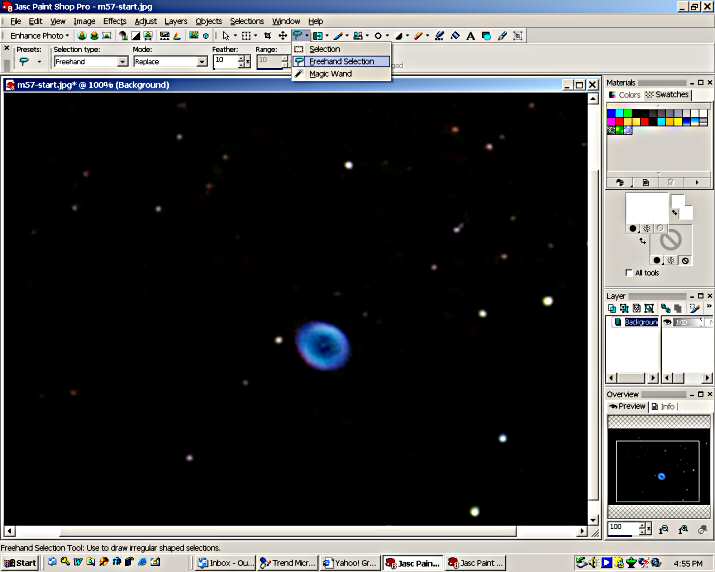
Set the "feather" to 10 pixels. This will smooth any edges to the color change and enable it to blend into the background smoother. Draw a circle around the Ring. Leave a little background between the circle and the Ring. A dotted line will be displayed around the Ring showing the area selected. Changes to the image made with PSP tools or filters will be restricted to this selected area.
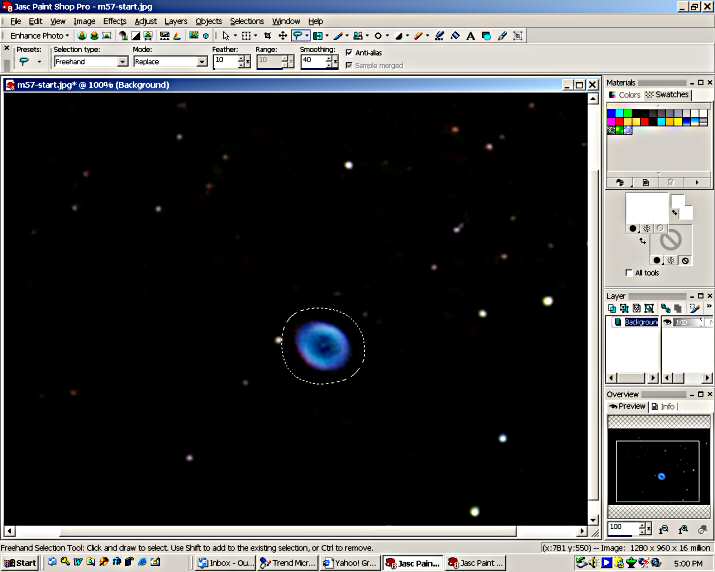
With the area to be worked on selected, we can now proceed with the color balancing.
|
